Home > CBM > BASIC > Keywords > Sprdef
180 Subpages: (divide), (equal), (less), (minus), (more), (multiply), (plus), (power), Abs, And, Append, Asc, Atn, Auto, Backup, Bank, Begin, Bend, Bload, Boot, Box, Bsave, Bump, Catalog, Char, Chr, Circle, Close, Clr, Cmd, Collect, Collision, Color, Concat, Cont, Copy, Cos, Data, Dclear, Dclose, Dec, Def, Delete, Dim, Directory, Dispose, Dload, Do, Dopen, Draw, Ds, Ds string, Dsave, Dverify, El, Else, End, Envelope, Er, Err, Exit, Exp, Fast, Fetch, Filter, Fn, For, Fre, Get, Get num, Getkey, Go, Gosub, Goto, Graphic, Gshape, Header, Help, Hex, If, Input, Input num, Instr, Int, Joy, Key, Left, Len, Let, List, Load, Locate, Log, Loop, Mid, Monitor, Movspr, New, Next, Not, Off, On, Open, Or, Paint, Peek, Pen, Pi, Play, Pointer, Poke, Pos, Pot, Print, Print num, Pudef, Quit, Rclr, Rdot, Read, Record, Rem, Rename, Renumber, Restore, Resume, Return, Rgr, Right, Rlum, Rnd, Rreg, Rspcolor, Rsppos, Rsprite, Run, Rwindow, Save, Scale, Scnclr, Scratch, Sgn, Sin, Sleep, Slow, Sound, Spc, Sprcolor, Sprite, Sprsav, Sqr, Sshape, St, Stash, Step, Stop, Str, Swap, Sys, Tab, Tan, Tempo, Then, Ti, Ti string, To, Trap, Troff, Tron, Until, Using, Usr, Val, Verify, Vol, Wait, While, Width, Window, Xor
| Keyword | Abbreviation | Token (hex) | Version(s) | Classification |
| SPRDEF | SPR{Shift+D} | FE 1D | 7.0 | Command and Statement |
| Syntax |
| Purpose |
| Remarks |
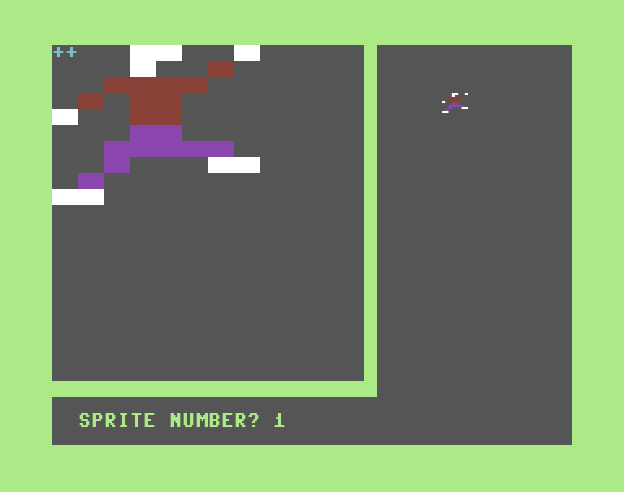
When SPRDEF first begins, it will (try to) allocate a VIC-II bitmap if not already allocated. This may generate OUT OF MEMORY ERROR. Otherwise the high-resolution bitmap will be cleared and displayed with a large edit window on the left.
| Outer Loop |
The image of the selected sprite is saved in a temporary buffer. This allows recovery/undo described later. Next the selected sprite's motion is halted and it is positioned at sprite coordinate (264, 74) [see MOVSPR] which is on the right half of the screen near the top. The choosen sprite is enabled and can be seen with its last-set parameters (see SPRITE). All other sprites are disabled.
The pixels of the sprite's image are drawn at 8x magnifaction in the edit window on the left half of the screen. The sprite-cursor is set to (0,0). The auto-advance feature is activated; this will automatically advance the sprite-cursor one pixel to the right (with wrap to next line) when a pixel-plotting key (a number) is pressed. Now SPRDEF enters its main / inner loop.
| Inner Loop |
| Key(s) | Action |
| 1 | erases the pixel (writes a 0 or %00 to the image data) |
| 2 | draws pixel with color 1 (writes a 1 or %01 to the image data) |
| 3 | draws pixel with color 2 (writes %10 to the image data); multi-color mode only |
| 4 | draws pixel with color 3 (writes %11 to the image data); multi-color mode only |
| Control + [1 ~ 8] | sets the unique color of the sprite (COLOR 1 ~ 8) |
| C= + [1 ~ 8] | sets the unique color of the sprite (COLOR 9 ~ 16) |
| up, down | moves the sprite-cursor in the indicated direction; will not wrap from top to bottom |
| left, right | moves the sprite-cursor in the indicated direction; will wrap to next line unless at the top,left or bottom,right |
| Return, Enter | moves the sprite-cursor to the left-most pixel on the next line |
| A | toggles the auto-advance feature on/off |
| C | copies another sprite's image to this sprite (described below) |
| M | toggles between multi-color and high-resolution sprite mode |
| X | toggles the sprite's X-expansion (double width) |
| Y | toggles the sprite's Y-expansion (double height) |
| STOP | the undo feature; restores the sprite's original image and exits to the outer loop |
| Shift + [Return, Enter] | disables the sprite and exits to the outer loop |
When you press C (for Copy), SPRDEF will prompt "COPY FROM?" and waits for a number 1 ~ 8 or Return/Enter. When one of those keys are pressed, the prompt is erased. If you pressed a number, the selected sprite's image is copied to the sprite currently being edited. Otherwise nothing is copied. Nothing effectively happens if you copy from the same sprite being edited. In any case, the main/inner loop continues.
The eight sprite images are stored sequentialy in Bank 0 RAM between 3584 and 4095 inclusive, 64 bytes each (although only the first 63 bytes of each sprite image is used by the VIC-II(e) chip). The data may be saved with BSAVE or loaded with BLOAD. You may also use SPRSAV to save a sprite's image to/from a string.
Because SPRDEF is an interactive editor, there are no examples of it; however below are examples to save your creation, and load it back later.
BSAVE "SPRITES.BIN", B0, P3584 TOP 4096, U8 : REM device 8, drive 0 SAVING 0:SPRITES.BIN READY. BLOAD "SPRITES.BIN", B0, P3584, U8 : REM device 8, drive 0 (P3584 not needed) SEARCHING FOR 0:SPRITES.BIN LOADING READY. |
The following screenshot shows SPRDEF in multi-color mode.
| Compare With |
| Contrast With |
| See Also |
© H2Obsession, 2014